Every tool fought for the same space.
Seven small icons under each scene, with no labels.
Atlabs AI · Case study
Every Atlabs video is finished in one editor: scenes, motion, voice, B-roll, captions, credits, export and publishing. I designed all of it, one tool at a time, without letting it turn into a cockpit.
Story pageClick CharactersStory Characters opens
Every character in the story, with a turnaround sheet. Tag them with @ in any prompt.
As of Oct 2026
An AI video has many parts, and people need to fix any of them without getting lost. I split the editor into three levels (the whole story, one scene, one scene second by second), kept whole-video controls apart from scene controls, and gave every tool the same layout. Then I made the hidden things visible: every version made, every credit spent, and every way to get the video out.
Seven small icons under each scene, with no labels.
Some settings changed one scene, others changed the whole video. They looked the same.
Motion, lip sync, B-roll and publishing were all coming. One page could not hold them.
Decision 01
Story for the whole video, scene editor for one scene, timeline for second-by-second work. You only go as deep as you need.
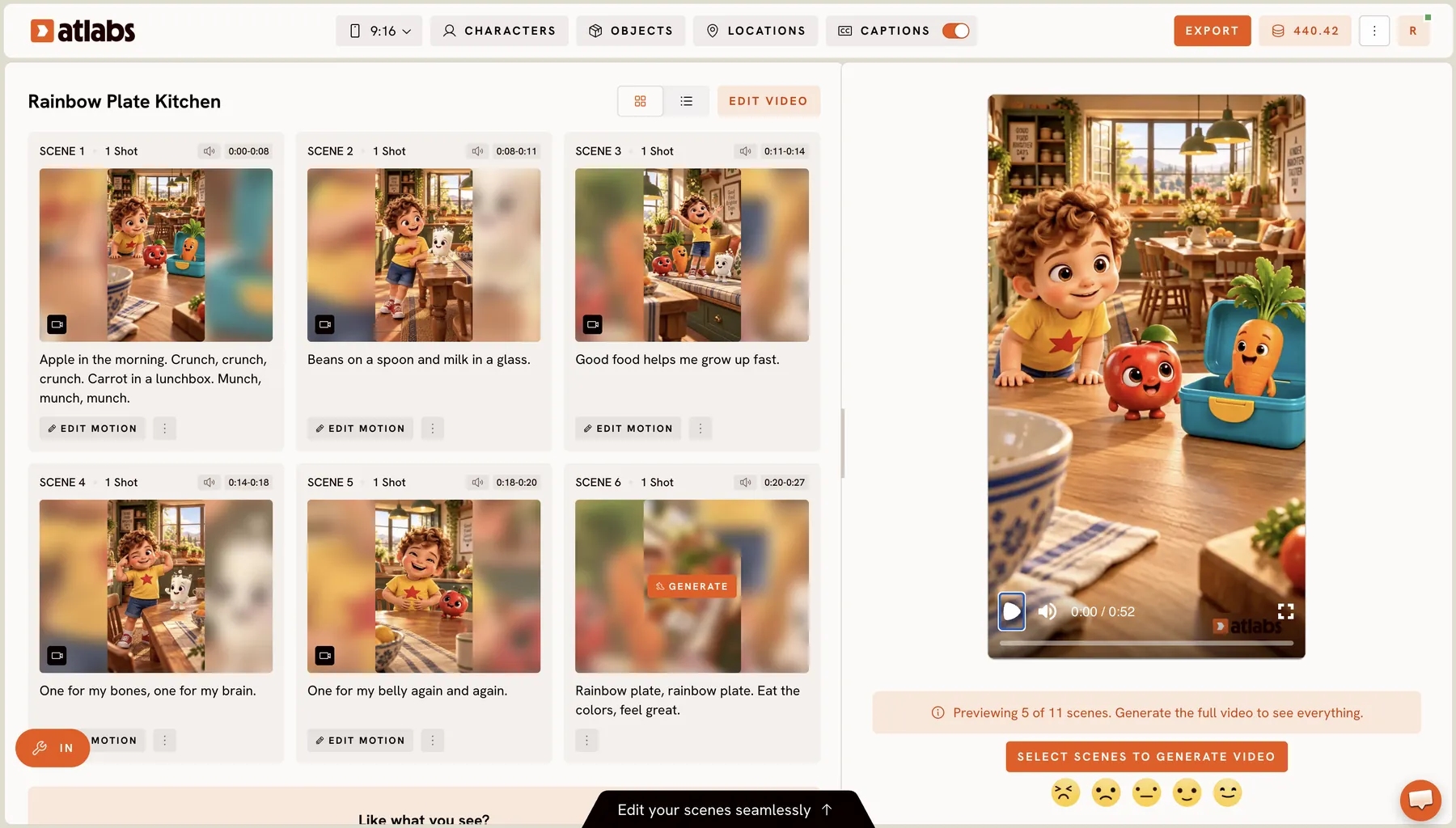
Most edits are small: regenerate one scene, change a line. A few need precision. So the editor has three levels. The story page shows every scene. The scene editor opens one scene with all its tools. The timeline goes second by second inside that scene.
Each level is one click deeper, and the scene list stays on the left the whole time, so you never lose your place.
All scenes at once. Watch the full video, regenerate a scene, or make the scenes that are left.
Decision 02
Anything in the top bar changes every scene. Anything in the side panel changes only this scene.
The rule is simple. The top bar holds things that change the whole video: aspect ratio, characters, objects, locations, captions and export. The side panel holds things that change only the scene you’re in.
Captions show why this matters. A different style in every scene would make a video look broken. So the style is set once for the whole video, and each scene’s Captions panel shows that style with a link to change it.
Decision 03
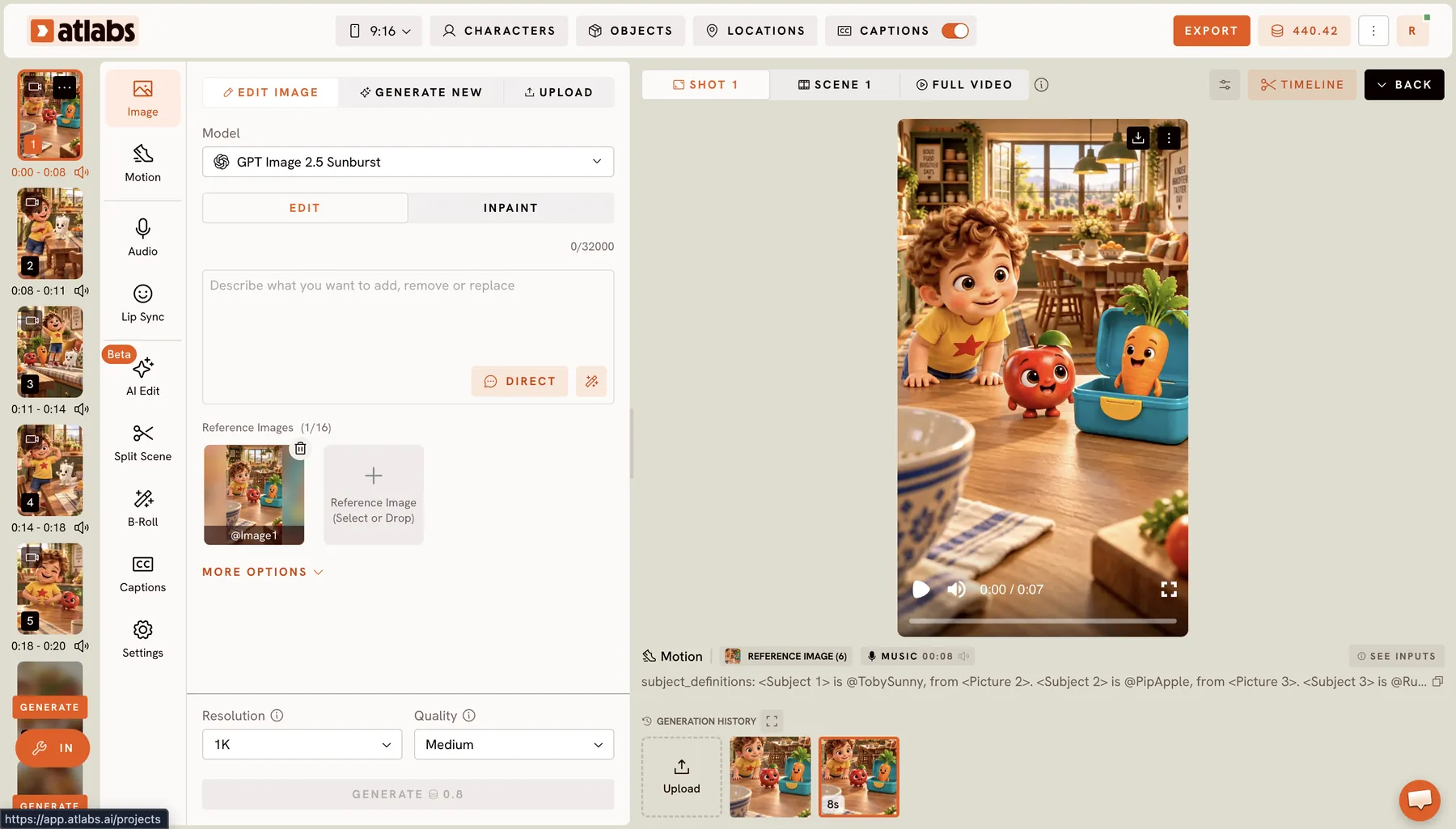
Every tool sits in the same side panel and works the same way: choose a mode at the top, set options, generate at the bottom, see versions under the preview.
The scene editor has nine tools, grouped into picture, sound and editing. They share one layout, so learning one teaches you the rest: modes at the top (edit, generate new, upload), options in the middle, and the generate button at the bottom with its credit cost on it.
Nine is already a lot, so I’m folding transitions into Settings instead of adding a tenth tab.
Picture
Sound
Edit
Edit the scene image with a prompt, inpaint one part, generate a new one, or upload your own. Reference images keep characters looking the same.
Turn the image into video from a prompt. Pick the model, add reference images, and tag them in the prompt.
The voiceover for this scene. Power users can change how a single word is said.
Match a character’s mouth to the voice.
Say what you want changed, in plain words. The assistant asks what it needs and shows the cost before it runs. New design, not live yet.
Tap a word in the script to cut one scene into two.
Headings, text, images and sound effects on top of the scene.
Shows the caption style for the whole video, with a link to change it.
Scene settings. I’m bringing transitions and the Brand Kit in here next.
Decision 04
AI Edit lets people describe a change in plain words. I redesigned it so the assistant asks one question at a time and shows the plan and cost before anything runs. The redesign isn’t live yet.
Some people don’t want to learn nine tools. They just want to say "change the cup" or "fix the voice in scene 3". AI Edit lets them do that.
The first version launched in August 2026 as a chat and moved into the scene editor in September. It works, but it’s hard to follow. So I redesigned it. The assistant asks one question at a time, with ready answers to pick. Before anything runs, it shows the plan, the models and the cost, and you approve it or suggest changes. Each result comes back for a quick yes or no.
This redesign is not live yet, as of Oct 2026.
New design, not live yet (Oct 2026).
Decision 05
Every image and video made is kept. History sits under the preview, and the assets library shows every version by scene, with the one in use marked Applied.
AI is unpredictable, so people try things. If a new version is worse, they need the old one back. Every generation is kept. The history row under the preview shows the versions for the current shot. The assets library shows everything made for the story, scene by scene, and marks the version in use as Applied.
Filters for media type, source, story and tool make it quick to find one clip among hundreds.
Decision 06
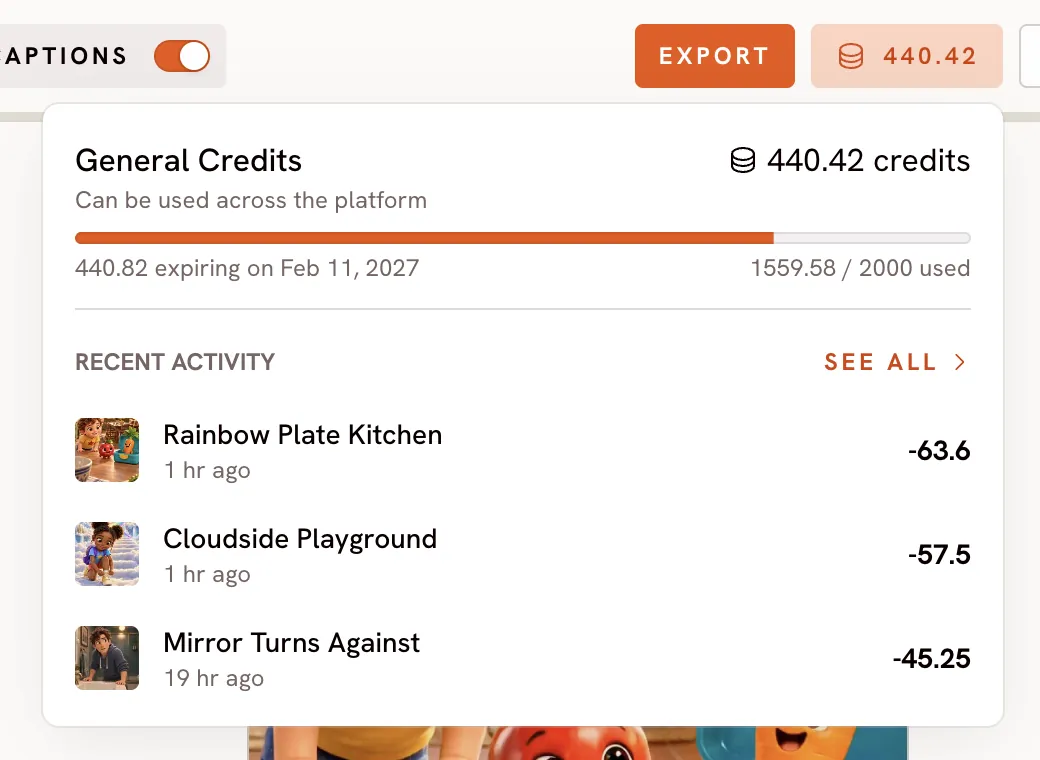
Credits are what people pay for. The credits menu shows what’s left, when it expires, and the latest stories. One more click shows every generation and its cost.
Every action in the editor costs credits. If people can’t see where their credits went, the product feels unfair, even when it isn’t.
The credits menu shows the balance, what expires and when, and the cost of the most recent stories. The breakdown opens any story by scene and shot, and lists each generation with its model, length and cost per second. The price also sits on every generate button, before you press it.
Decision 07
Characters are defined once with a turnaround sheet and tagged with @. The same tags work in image and motion prompts.
A story falls apart if the hero looks different in every scene. Each character gets a turnaround sheet (front, side, back, close-up) and a name. People tag them with @ in any prompt, and reference images can be tagged the same way.
Under the preview, people can see exactly which characters and references went into a shot.
Decision 08
Export re-renders at any resolution and offers eight ways out, including publishing to YouTube, Instagram and Facebook.
A video isn’t done until it’s somewhere. The export menu re-renders at the resolution you pick, then offers download, a preview link, Premiere Pro, a thumbnail, subtitles as an SRT file, and publishing.
YouTube publishing came in August 2026, Instagram and Facebook in September. The publish screen writes a title and description from the video, and uses the latest export unless you pick an older one.
The story behind the work, or my résumé on one page.